The guide
How Ringske works.
From the first guest on the list to the run of the day: for every part, what it does, how you use it and what is good to know. With screens from a real dashboard.
Getting started, together
Creating an account takes two minutes. You immediately get a wedding site (not online yet), two moments, a budget and the Belgian task list to start from.
How to
- 01 Click Start for free and fill in your names, the wedding date (or "We don't know yet"), the venue and a mood.
- 02 Choose the address of your site, for example moya-elian.ringske.be, and create your login with your email address and a password.
- 03 Invite your partner: on the welcome screen, or later under Settings → Partner → Send invitation. Your partner gets an email and creates their own login.
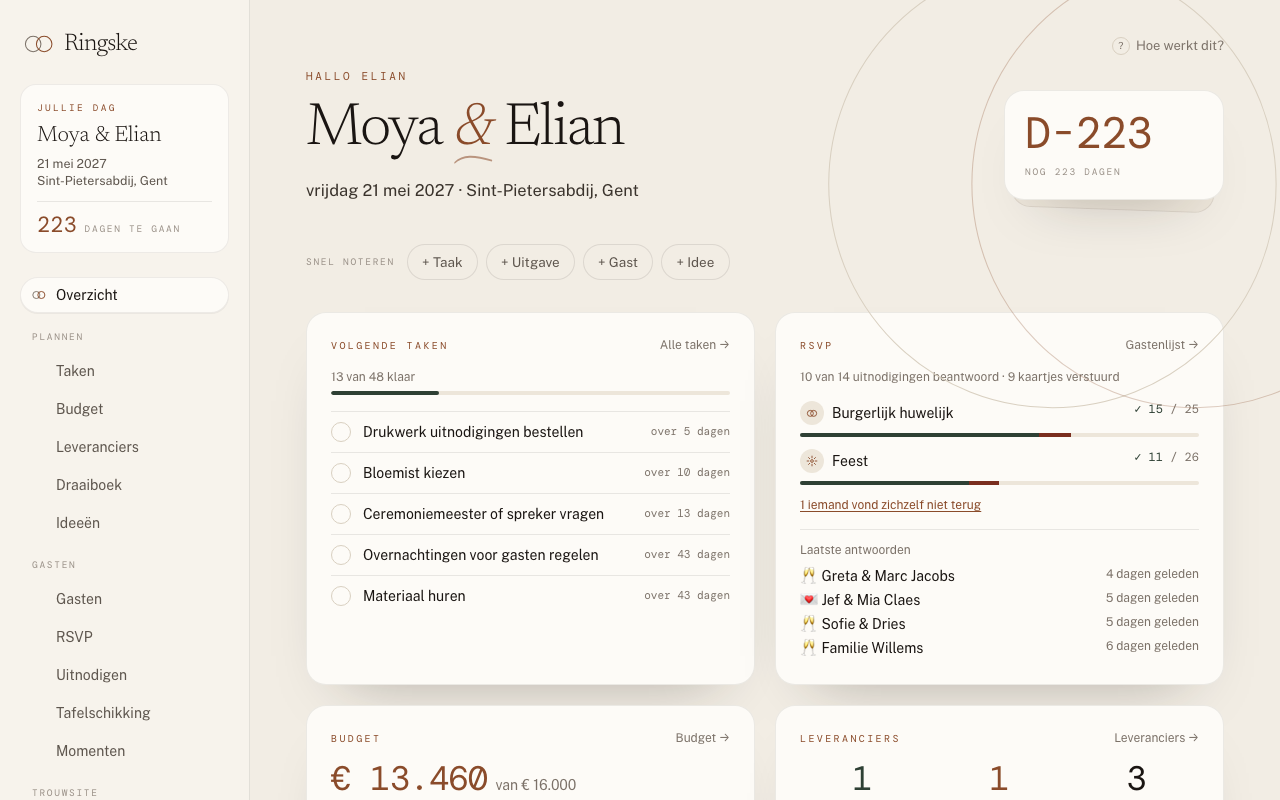
- 04 Look at Overview: the countdown, the next tasks, the RSVP status, the budget and the vendors. With + Task, + Expense, + Guest and + Idea you jot something down quickly.
Good to know
- You choose your site's address when you sign up. You cannot change it yourselves afterwards, so choose carefully.
- There is room for one partner per wedding. The invitation link stays valid for 14 days; Send again gives your partner a new one.
- The Contact address under Settings → Wedding receives the daily task email and an email for every guest answer. Guests who reply to an email end up there too.
- Under Logbook, at the bottom of the menu, you see who did what: who added or invited a guest, who sent the invitations, which guest answered. The latest lines are on the Overview too.
Questions
We don't know our wedding date yet. Can we start anyway?
Yes. Choose "We don't know yet" and fill in the date later under Settings → Wedding. The task deadlines are calculated as soon as there is a date.
Our wedding date moves. What do we still need to change ourselves?
Tasks set at a distance from the wedding date (e.g. D-42) move along by themselves. Check the date line in Site content, the times of your moments, the RSVP deadline and tasks with a fixed date yourselves.
The link in the partner invitation no longer works.
It has expired (after 14 days), been revoked or already been used. Send a new one via Settings → Partner → Send again.
Can we turn off the daily task email?
The email only goes out on days when something is due or needs paying within two weeks, to the Contact address. There is no separate switch: emptying the Contact address also stops the emails about RSVPs.
Your wedding site
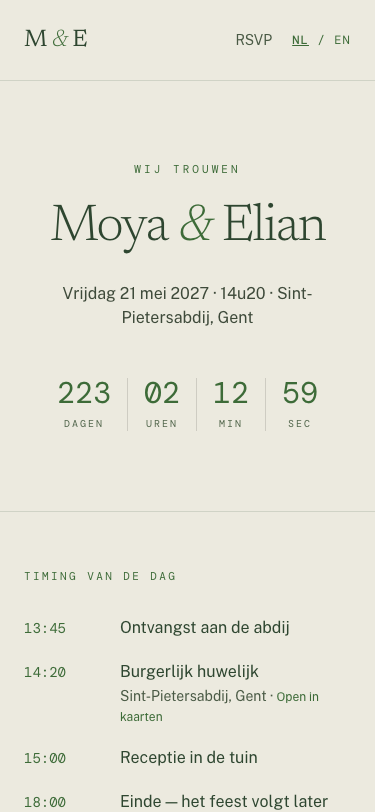
Your site lives at its own address on ringske.be, in Dutch and English, and in French if you like. Building it is free; guests only see it once you publish.
How to
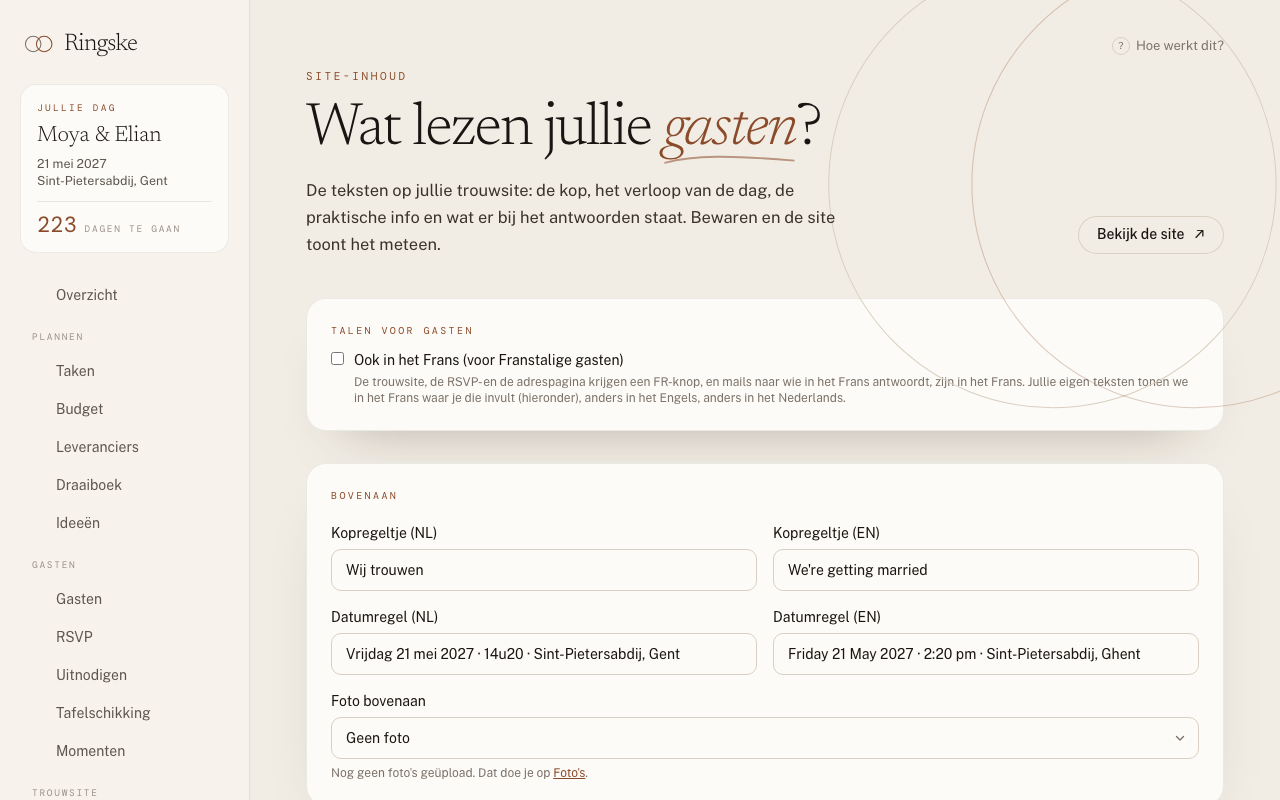
- 01 Open Site content and fill in the blocks: Top section, Timing of the day, Practical info, RSVP & Map, Gifts and Rolleke. Click Save everything at the bottom.
- 02 Upload photos under Photos and choose where each one goes: at the top, by the RSVP or in the gallery. Click Save.
- 03 Adjust the colours under Design and click Save colours. Only the wedding site changes, not the dashboard.
- 04 See the result with View the site, top right.
- 05 Done? Click Publish — €149 on Overview or Inviting. After payment the site is online straight away.
Good to know
- Site content saves everything at once. If one field is not right, such as a time without text in the timing, nothing is saved until you fix it.
- If the run of the day has items "for guests", the site shows that programme instead of the timing from Site content.
- Want to lock the site? Turn on an access code under Settings → Access to the wedding site. Anyone who scans the QR code or clicks the link in an invitation gets in without typing.
- The gift block shows your account number with a QR code for the banking app. Guests choose the amount themselves; the money goes straight to you.
Questions
Can our guests already see the site while we work on it?
No. Until you publish, everyone except you gets an error page. You can look along via View the site.
We turned on French, but our practical info is in English.
Right: only the header line, the date line and the RSVP intro have a French field. The rest we show in English, and otherwise in Dutch. The buttons and forms themselves are fully in French.
Does the QR code still work if we change the access code?
Yes, the key in the QR code stays the same. Do turn on the access code before downloading the QR code for the printer: a QR code from before does not contain the key.
We changed the colours, but nothing happened.
Click Save colours. Resetting to the default colours only refills the form; the site changes once you save.
The guest list
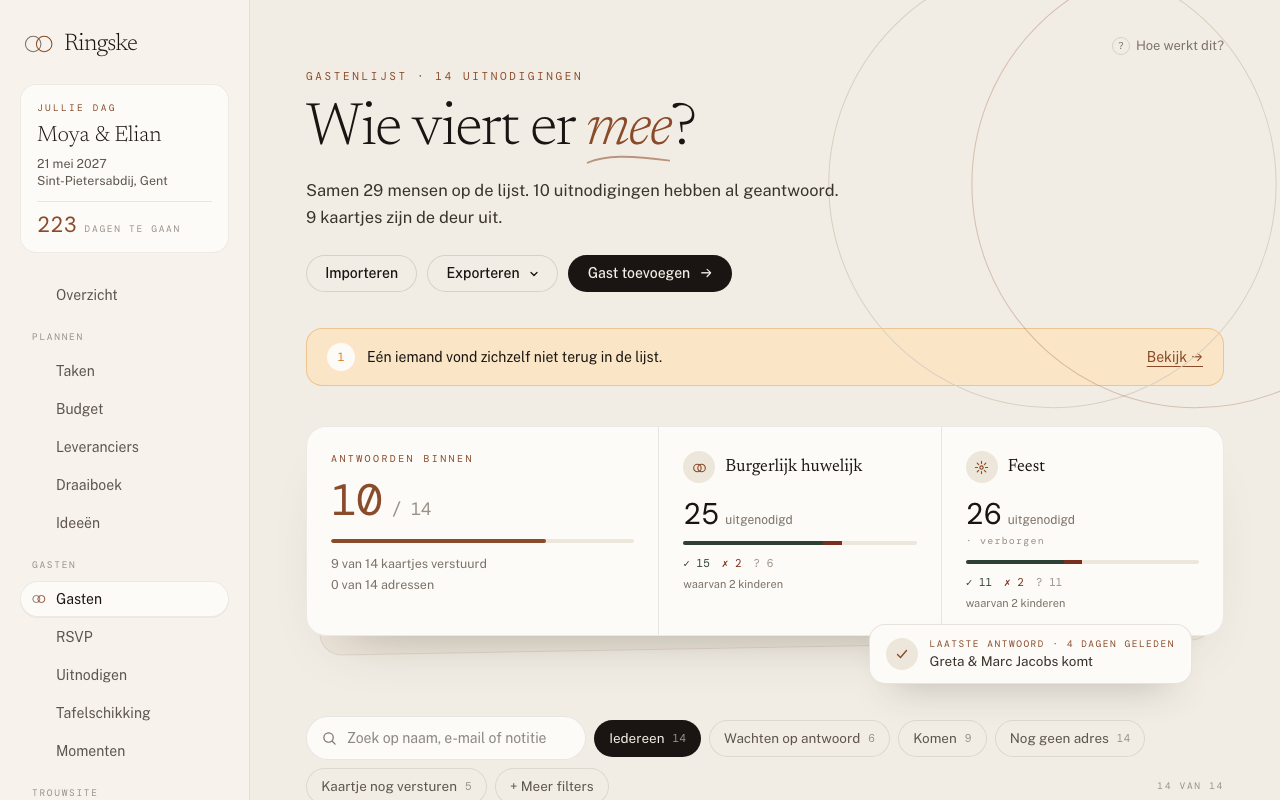
One row per invitation, as in your spreadsheet: "Andrea & Michael" is one invitation for two people. Per moment of the day you see who is invited and what they answered.
How to
- 01 Type a name at the top of Guests, for example "Andrea & Michael". Optionally pick a category and the moments they are invited to, and click Add.
- 02 We guess the number of people from the name; change it in the # column. Children count in that number.
- 03 Already have a list in Excel or Notion? Click Import, choose the CSV file and check what goes where. Click Import.
- 04 Click + in a moment's column to invite someone, or ? to undo that.
- 05 Click Details for everything about one invitation: other names, email address, postal address, dietary needs, notes and their personal link.
Good to know
- Fill in "Other names" under Details (a nickname, another spelling) and guests find themselves more easily in the RSVP.
- Tick rows to give them a category in one go, invite them to a moment or mark them as Card sent.
- Did someone phone in their answer? Set it under Details → Answers per moment to coming, with how many, and click Save.
- Export CSV always gives the full list, regardless of filters. The addresses are separate, in Addresses for envelopes.
Questions
Is "Andrea & Michael" one row or two?
One invitation for two people. One of them answers for the whole invitation, per moment.
Which columns does the import recognise?
The usual columns, in Dutch and English: name, number, children, category, who invites, the moments, the RSVP status, card sent, email, diet, notes, other names and the address. You check yourselves which column goes where.
Someone answered, but is not on our list.
Anyone who cannot find themselves can send you a message. It lands on RSVP under "Could not find themselves". There you link it to the right invitation or add the person to the list.
Moments of the day
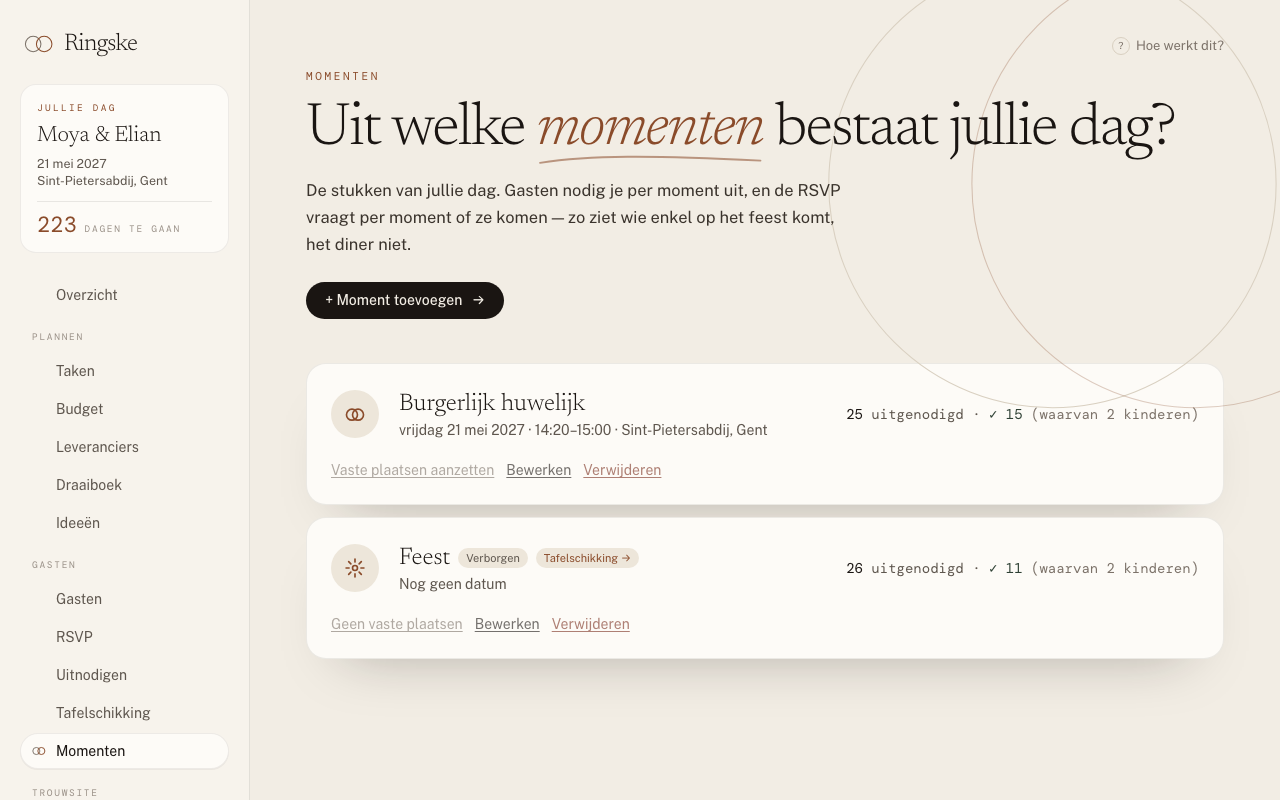
Moments are the parts of the day you invite people to: the civil ceremony, the reception, the dinner, the party. Guests answer per moment, and only see what they are invited to.
How to
- 01 Open Moments and click + Add moment.
- 02 Give it a name (and an English one if you like), choose the type and fill in the date, times and location.
- 03 Seated dinner? Tick Fixed seats, and you can make a seating plan for that moment.
- 04 Click Save. Then invite guests to that moment in the guest list.
Good to know
- The order follows the date and start time. Want a moment earlier in the list? Change its time.
- Does the party run past midnight? An end time earlier than the start time counts as the next day.
- A maximum number of guests is only a warning: the guest list tells you when more people are invited than there is room for.
Questions
Can someone come only to the party and not the dinner?
Yes. Invite those guests only to the party; they only see and answer that moment.
Can we invite someone to a moment that is not on the site?
Yes. Untick "Visible on the wedding site and in the RSVP". Guests then do not see the moment and cannot answer it, but you still keep track of it in the guest list.
What happens if we delete a moment?
All invitations and answers for that moment disappear, and its tables too. You first see how many invitations it concerns.
RSVP: one link for everyone
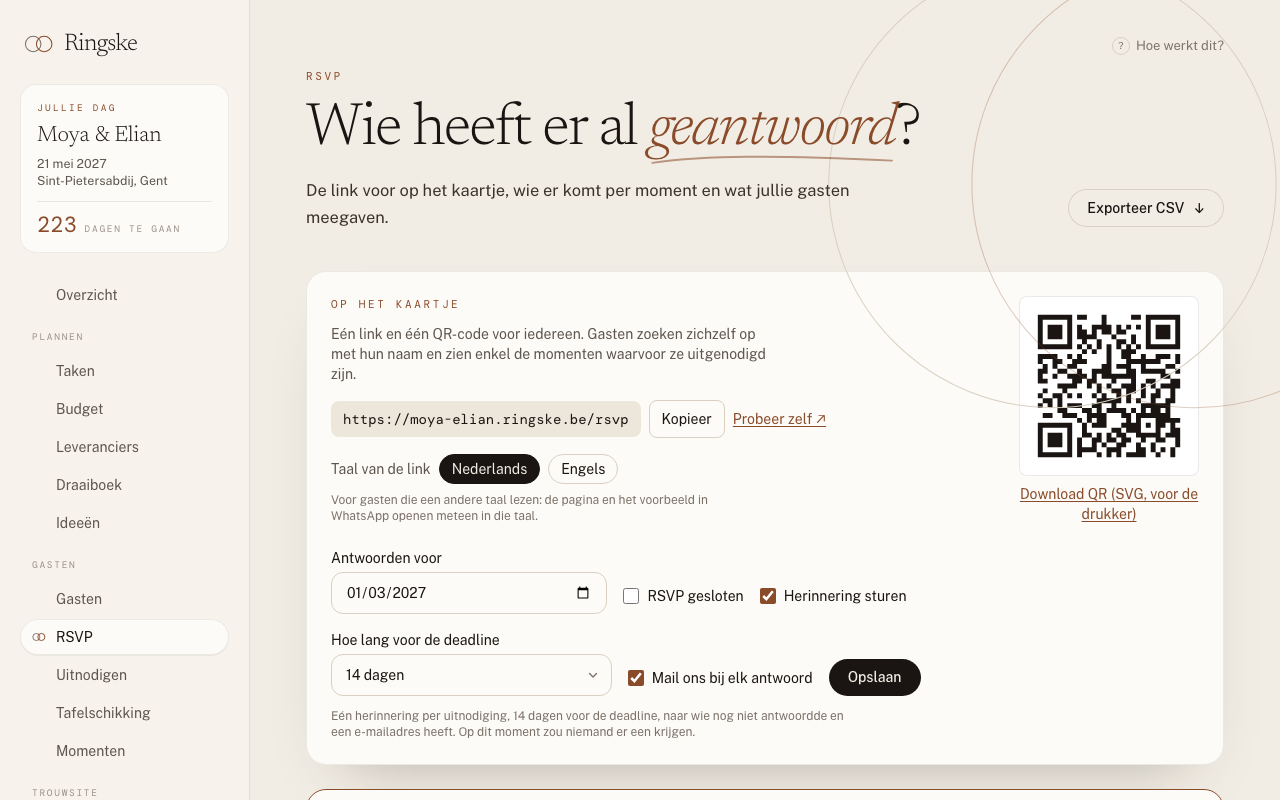
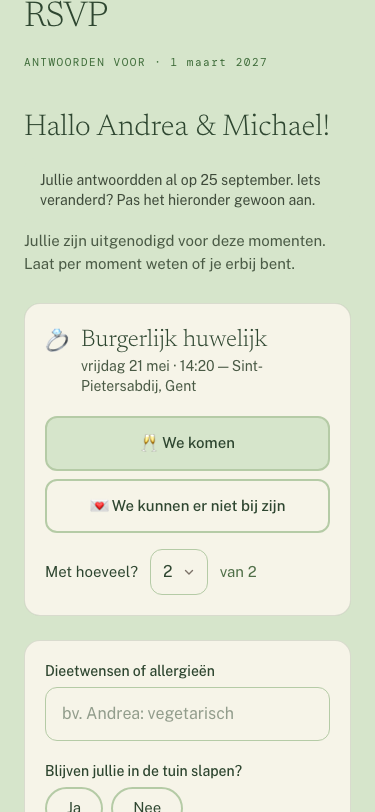
One link and one QR code for the whole wedding. Guests look up their name, without an app or account, and answer per moment with how many are coming and their dietary needs.
How to
- 01 Open RSVP. Under "On the card" you find the link (Copy) and the QR code (Download QR (SVG, for the printer)).
- 02 Choose a deadline under Answers before and how long beforehand a reminder goes out, and click Save.
- 03 Want to know something extra, like who is staying the night? Add a question under Your own questions: yes/no, free text or a choice from a list.
- 04 Follow the answers under Numbers per moment, with the dietary list and guests' messages below.
- 05 Numbers final? Tick RSVP closed, click Save and use Export CSV for the caterer.
Good to know
- Try it yourself ↗ opens the RSVP the way a guest sees it.
- You get an email for every answer, if there is a Contact address and Email us about every answer is on. Replying to that email goes straight to the guest.
- The deadline does not close the RSVP by itself. Guests see it on screen and it decides when the reminder goes out; you close it with RSVP closed.
- The RSVP only works once the site is published.
Questions
Do we need a separate link per guest?
No. One link and one QR code work for everyone; every guest finds themselves by name and only sees their own moments. A personal link per invitation exists too, under Details in the guest list and in the invitation email.
How does a guest change their answer?
Via Change answer in the confirmation email, or by looking up their name again. They then first get a code by email, so nobody else can change the answer. You get an email with the new answer.
Can guests answer in English or French?
In English, always. In French if you turn it on under Site content. Their confirmation email and later emails come in the language they answered in.
Someone cannot find their name.
Guests should type their name as it is on the invitation; small typos and accents do not matter. If it still does not work, they can send you a message, which shows up on RSVP under "Could not find themselves".
Inviting and addresses
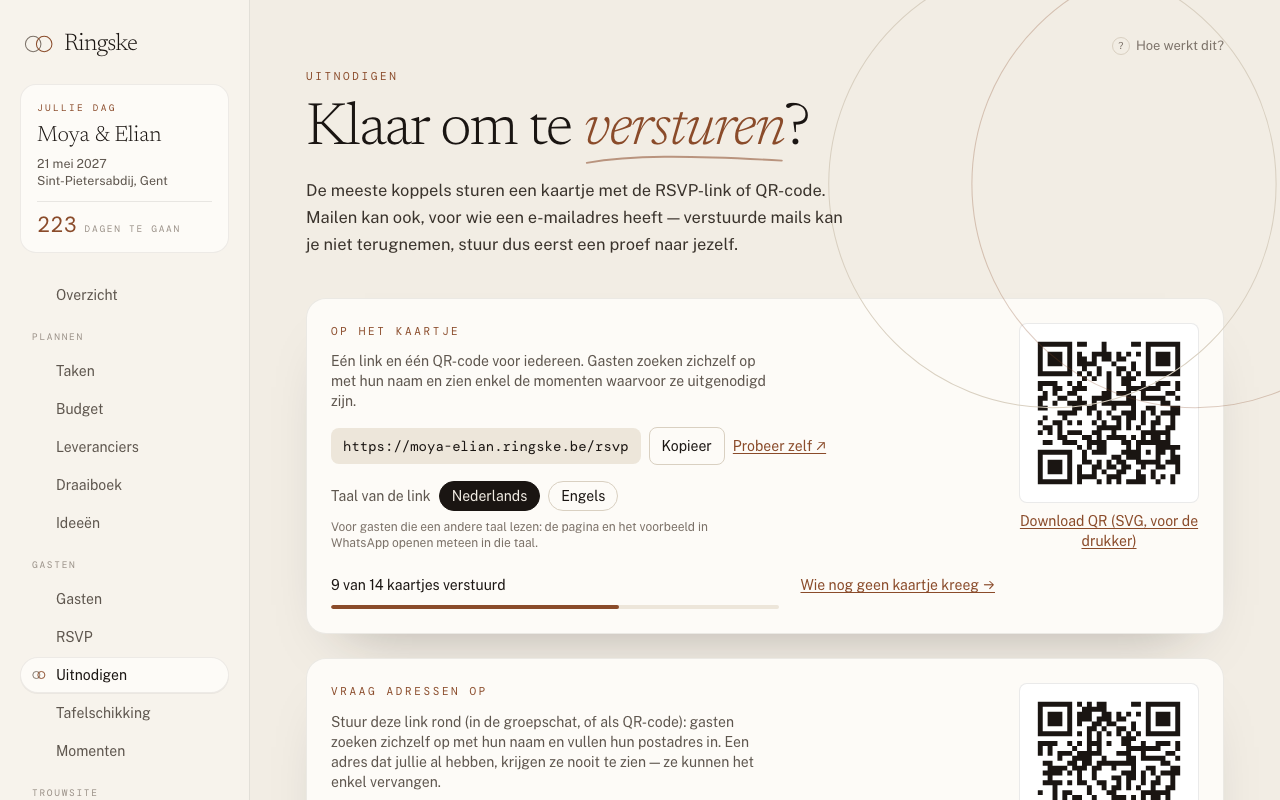
Most couples put the QR code on their paper card. If you like, you also send the invitation by email. And if you still need addresses for the envelopes, you simply ask for them.
How to
- 01 Sending paper cards? Tick Card sent per invitation in the guest list. That way you know who has not had one yet, and the reminder knows whom it may write to.
- 02 Need addresses? Share the link or QR code under Ask for addresses. Guests look up their name and fill in their address; download them afterwards with Addresses for envelopes.
- 03 Inviting by email? Make sure the guests have an email address and click Test to myself first.
- 04 Click Send for one invitation, or Send all not yet sent. You first see the full list.
Good to know
- Sending emails only works once the site is published.
- Nobody gets the same invitation twice, unless you click Send again yourself.
- Every email goes out in that guest's language, with your Contact address as the reply address.
- The reminder goes out once, automatically, to whoever got a card or email, has an email address and has not answered yet. You set it up on the RSVP page.
Questions
Do we have to invite by email?
No, it is optional. The QR code and the link on the card work for everyone.
Can we see the email before guests get it?
Yes. Test to myself sends a real example to your Contact address, without marking anyone as invited.
When does the reminder go out?
Once, on the first day of the window you chose: 7, 14 or 21 days before the deadline. That needs a deadline.
The seating plan
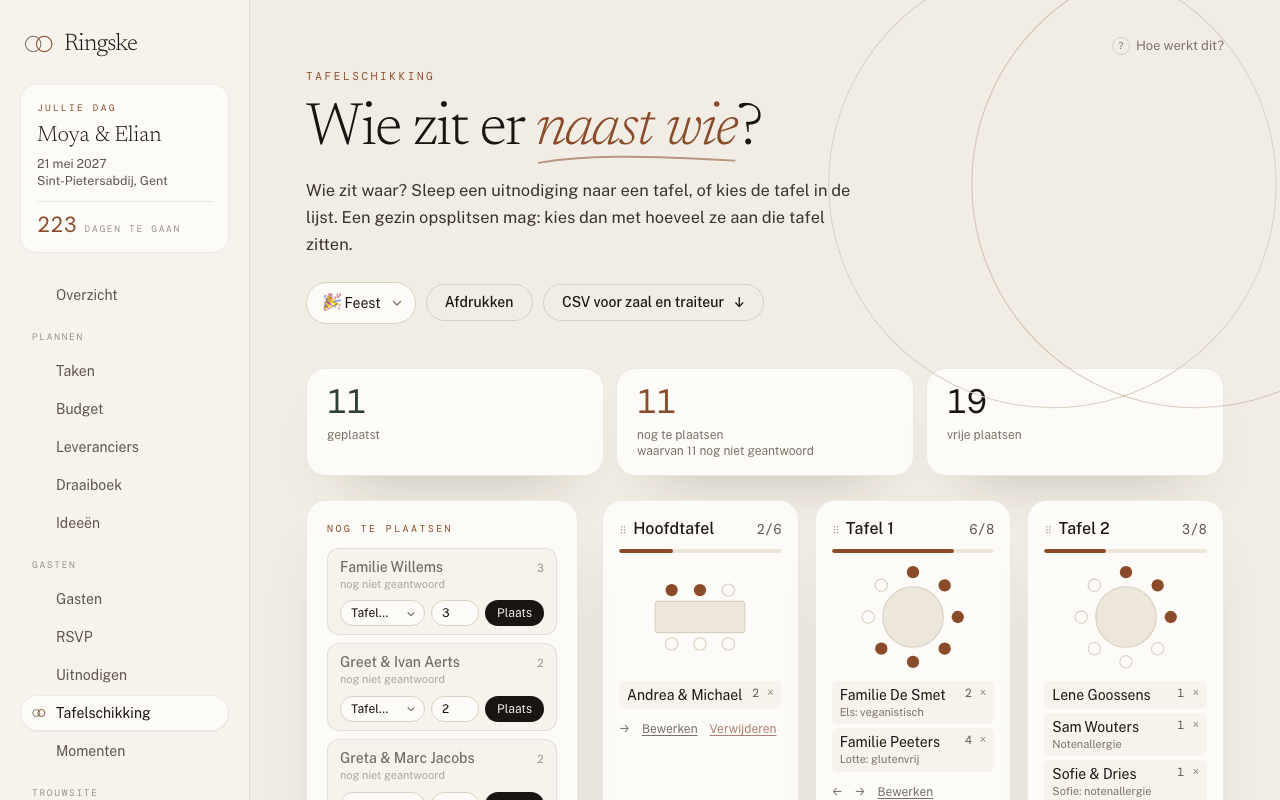
For a seated dinner. Turn on Fixed seats for the moment, and the seating plan appears in the menu.
How to
- 01 Open Seating. No moment with fixed seats yet? Click Turn on fixed seats.
- 02 Add tables, or use Fill a room quickly: for example ten round tables of eight.
- 03 Drag guests from Still to seat to a table, or pick a table and click Seat. Splitting a family is fine: choose how many sit at that table.
- 04 Done? Use Print or CSV for venue and caterer.
Good to know
- You can already seat guests who have not answered: that invitation then counts with its full number.
- A table that is too full turns red. It is a warning; you can always save.
- On a phone or tablet, dragging does not always work. Pick the table in the list and click Seat instead.
- Dietary needs show by every name at the table, and in the CSV for the caterer.
Questions
I only see "Are your guests seated at tables?"
No moment has fixed seats yet. Turn them on with the button, or under Moments with Fixed seats (seated dinner).
What if someone already at a table does not come after all?
They stay at the table struck through, marked as no longer coming, and no longer count. That invitation is left out of the CSV.
Do guests see which table they are at?
No, the seating plan is only for you, the venue and the caterer.
The planner
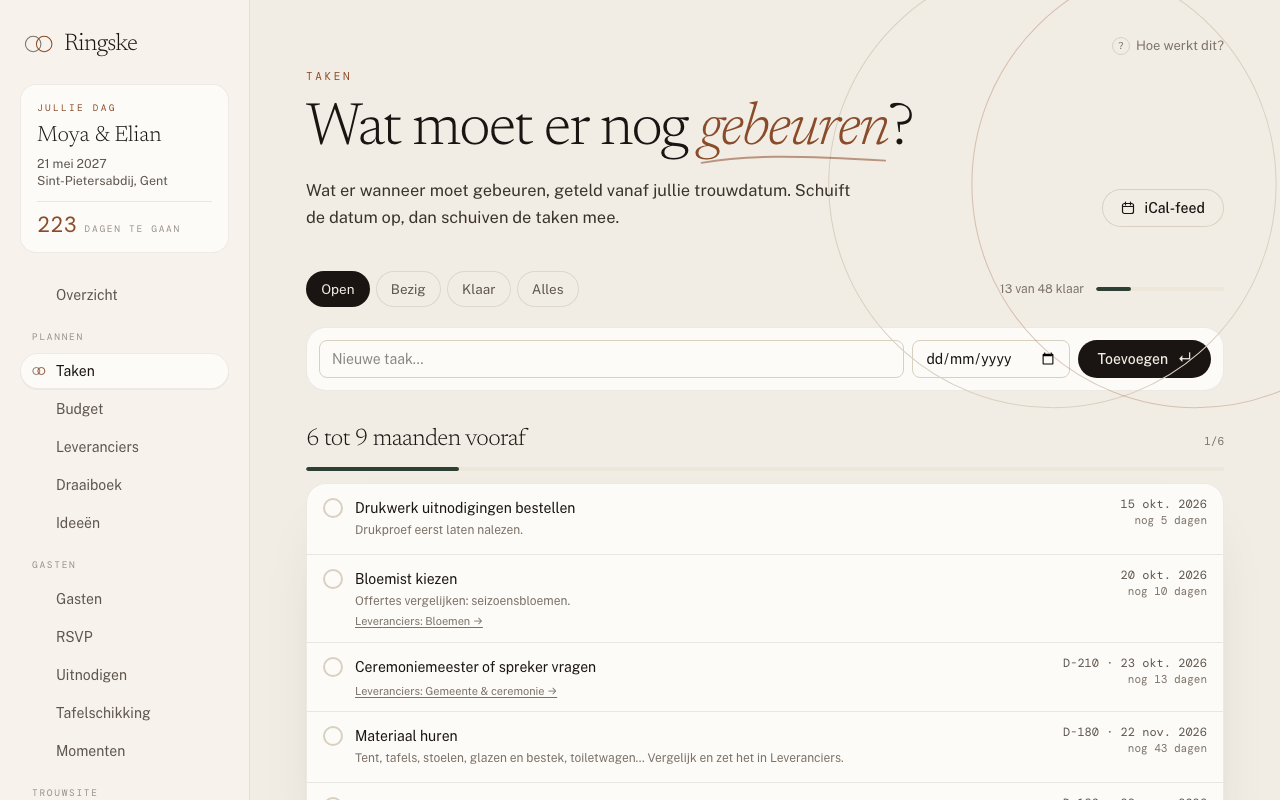
A task list with over forty Belgian default tasks, from setting the budget to the marriage declaration at the town hall. Deadlines are on a fixed date or at a distance from the wedding date.
How to
- 01 Open Tasks. The default tasks are already there, per phase: from more than a year ahead to after the wedding.
- 02 Click the circle next to a task to move it from Not started to In progress and Done.
- 03 Your own task? Type it in New task…, optionally pick a date and click Add.
- 04 Click a task to edit it. Choose Relative to the wedding date and fill in, for example, -42 for six weeks before.
- 05 Put your tasks in your calendar with the iCal feed link, top right.
Good to know
- Tasks at a distance from the wedding date (D-42) move when the date changes. Tasks on a fixed date do not.
- Started late and some tasks are already overdue? The yellow bar at the top marks them all done in one go with Tick them all off.
- The marriage declaration is already in there, with the legal window: at the earliest six months and at the latest fourteen days before the wedding. Also check what your town asks.
- Every morning the Contact address gets an email with what needs doing in the next two weeks, if there is anything.
Questions
What does D-42 mean?
Forty-two days before the wedding date. A task at D-42 moves along when your date shifts.
How do I get the tasks into Google Calendar or Apple Calendar?
Copy the iCal feed link on Tasks (right-click → copy link) and add it to your calendar as a subscription by URL. Budget payments with a date are in there too.
Can we assign tasks to each other?
No. You both see the same list and tick things off together.
The budget
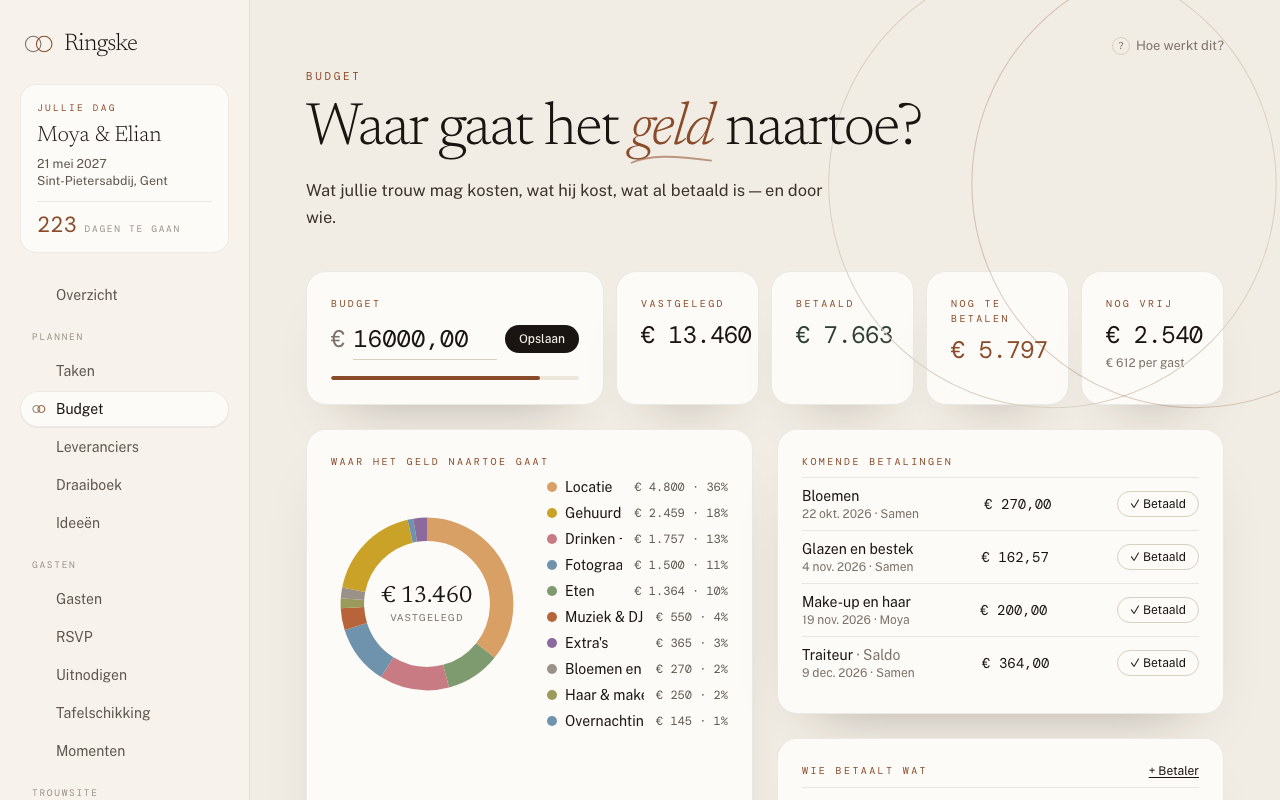
What is committed, what is paid and what still needs paying, per category and per payer. Also when the parents pay a share.
How to
- 01 Fill in your total budget at the top and click Save.
- 02 Add an expense: what, the amount and the category, and click Add.
- 03 Click an expense for the details. With + Payment you add a deposit and the balance, with a date and who pays.
- 04 Are the parents chipping in? Add them with + Payer and pick them on the payment.
- 05 On the day itself, mark a payment with ✓ Paid under Upcoming payments.
Good to know
- Does the caterer charge per person? Choose Per guest for the price, and the moment. The total then follows the answers: who is coming and who has not answered yet.
- Upload receipts and invoices on the expense itself.
- A payment with a date also shows up in the daily email and in the iCal feed.
Questions
Can my parents pay a share?
Yes. Add them with + Payer and pick them on every payment. Under Who pays what you see per payer what is paid and what is still due.
Do I have to put a booked vendor in the budget myself?
No. When you set a vendor to Booked, it lands in the budget with its price. Add the deposit and balance on the expense afterwards.
What does "Per guest" at the top mean?
What is committed, divided by the number of people coming or who have not answered yet.
Comparing vendors
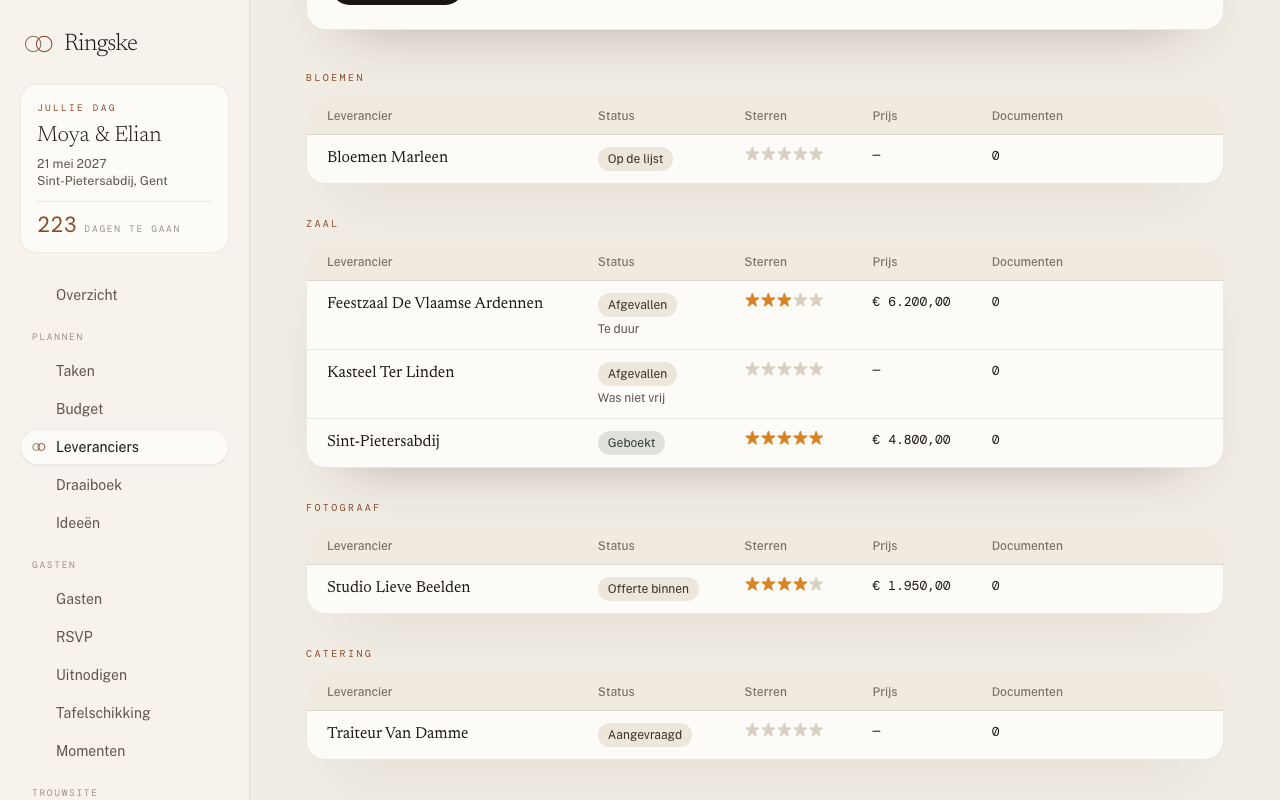
Venues, photographers, the caterer: line them up, give each your stars and keep the quotes together.
How to
- 01 Fill in the New vendor form under Vendors and click Add.
- 02 Each of you gives stars in the list. If you are two stars or more apart, it says "you differ".
- 03 Click the name for the details. Upload the quote under Documents and set the status to Quote received.
- 04 Waiting for an answer? Fill in Follow up on; a week before, that vendor shows up on the overview.
- 05 Decided? Set the status to Booked. Set the others to Dropped, with a reason.
Good to know
- You change the status on the vendor's own page, not in the list.
- Every document shows whether your partner has looked at it yet.
- Booked vendors automatically appear among the important contacts in the run of the day.
Questions
Has my partner seen the quote yet?
The document says whether it has been seen, by whom and when, or that your partner has not looked at it yet.
What happens when we book a vendor?
It lands in the budget with its price, in the matching category. If the price changes later, the budget follows, unless you changed the amount there yourselves.
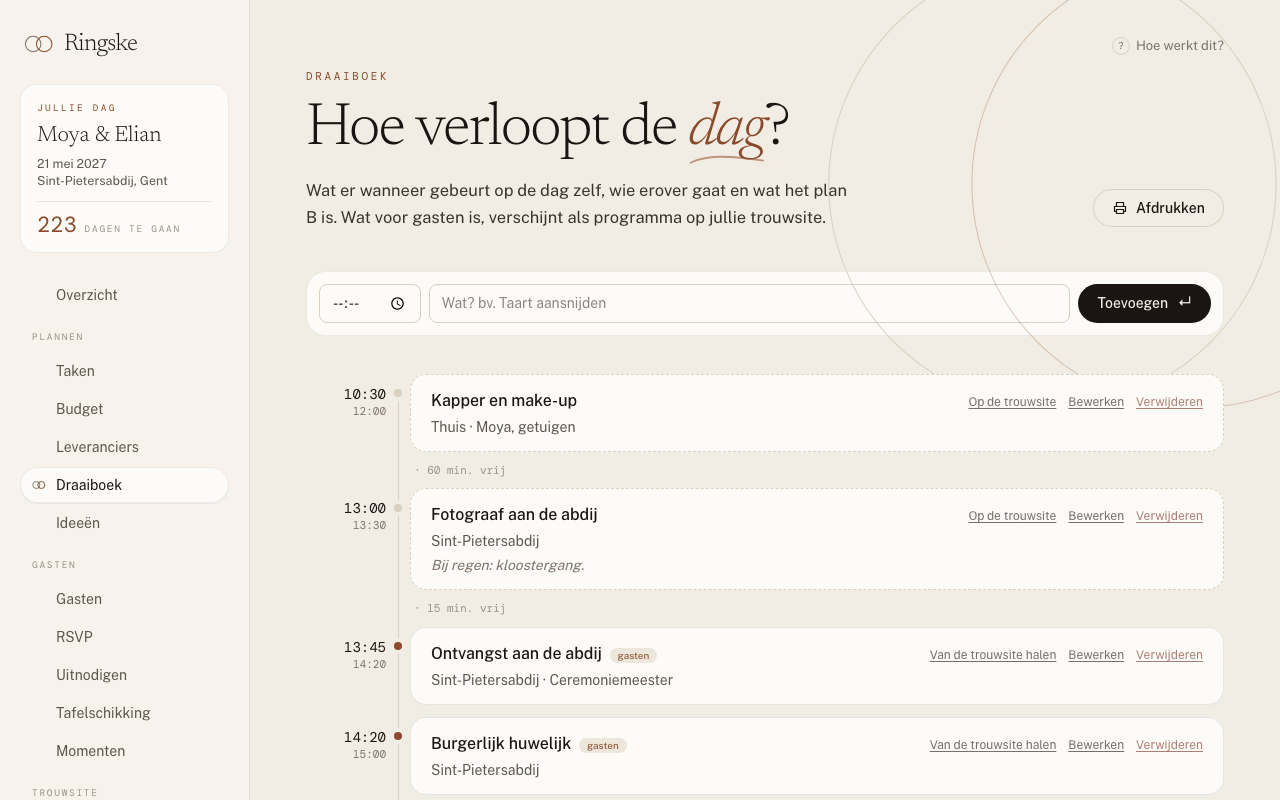
The run of the day
The day itself, hour by hour: what happens, where, who is in charge and what plan B is. With the phone numbers you need that day.
How to
- 01 Open Run of the day. Empty? Fill in an example day gives you a day to start from.
- 02 Add an item with a time and what happens, and click Add.
- 03 Click Edit for the duration, where, who, the vendor and notes and plan B.
- 04 Tick For guests to put an item on the wedding site.
- 05 Click Print for the master of ceremonies, with the contacts included.
Good to know
- Guests only see the time, the title and the place of the moment. Notes, who and plan B stay yours.
- An item tied to a moment not everyone is invited to is only seen by that moment's guests, after they look up their name in the RSVP.
- Between two items you see how much time is free, or that they overlap.
Questions
Do we have to type the programme twice, for us and for the site?
No. Tick For guests and it becomes the programme on the wedding site.
The evening guests should not see the dinner.
Tie the dinner items to the dinner moment. Then only the guests invited to it see them.
Ideas and mood board
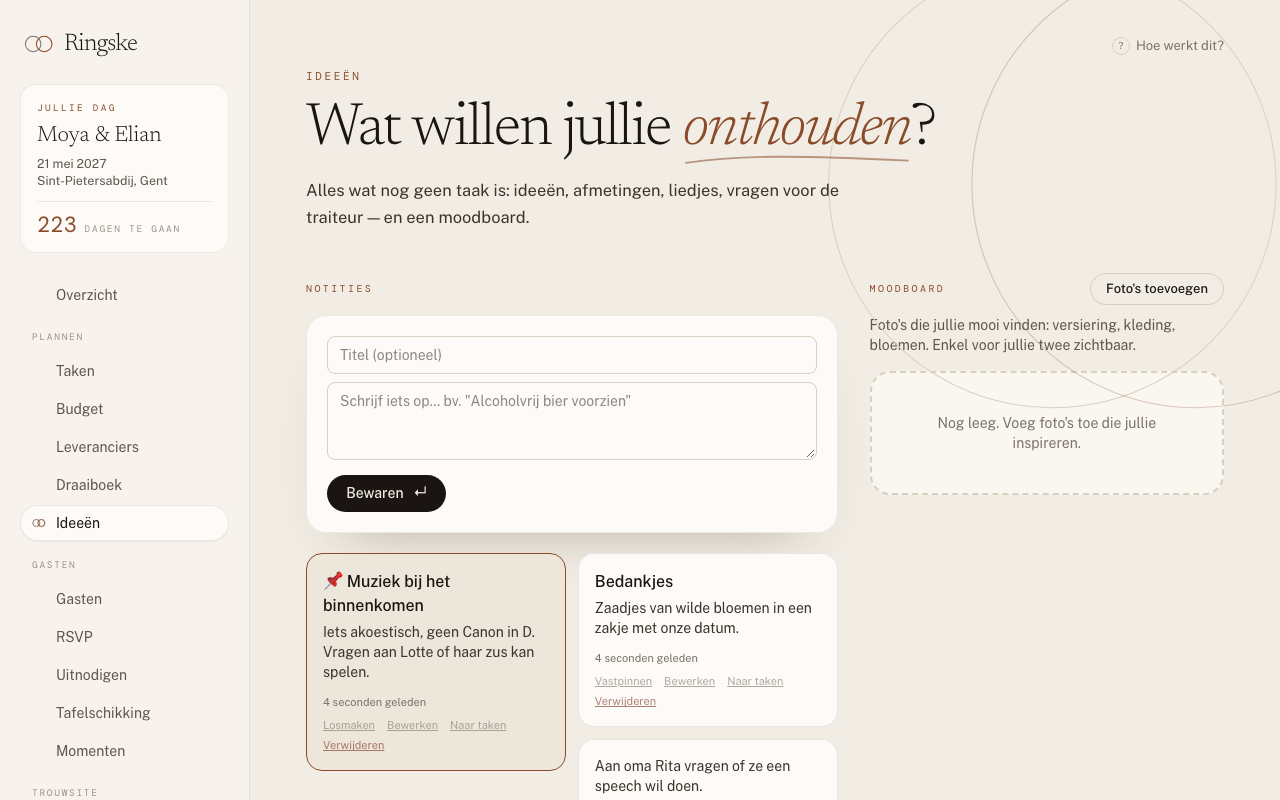
A place for everything you do not want to forget, and a mood board only the two of you see.
How to
- 01 Write a note under Notes and click Save. Pin puts it at the top.
- 02 Does an idea become a task? Click To tasks.
- 03 Upload photos to the Mood board and give them a caption or a link, for example to Pinterest.
Good to know
- What you jot down on the overview with + Idea ends up here.
- To tasks moves the note: afterwards it is under Tasks, without a deadline.
Questions
Do guests see the mood board?
No, only the two of you.
Ask your AI
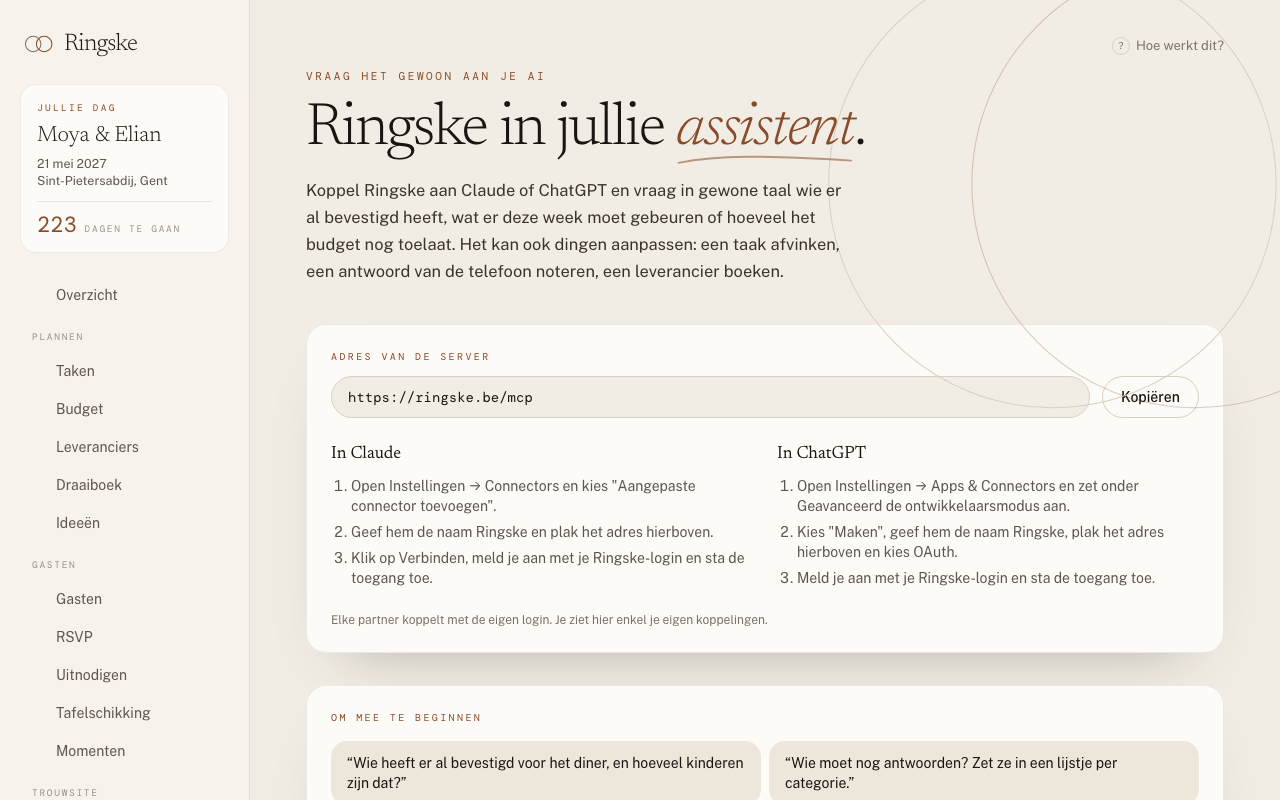
Connect Ringske to Claude or ChatGPT and ask in plain language who has confirmed or what needs doing this week. Your AI can also note answers, tick off tasks or book a vendor.
How to
- 01 Open Claude & ChatGPT in the dashboard and copy the server address.
- 02 Add it as a connector in Claude or ChatGPT; the steps for each are on the page.
- 03 Sign in with your Ringske login and allow access.
Good to know
- Each partner connects with their own login.
- Your AI cannot send emails or change anything about your wedding site or account.
- You can always revoke access with Revoke access.
Questions
Does my partner have to connect separately?
Yes, with their own Ringske login. Each of you only sees your own connections.
Ready to start?
Planning is free, for as long as you like. You only pay when your wedding site goes online.
Start for freeIs your question not here? Send us a message.